Mainframe Forum: A comprehensive repository for programming tutorials and technology news. Got a minute? Click upon those blue words to start learning in Cobol, DB2, CICS, JCL, CA7, APIs, DevOps, Agile, JAVA, SORT, Excel macro, python, and mainframe tools.
Numerical calculation is one of the most critical part of programming language. In-fact most of the programming language provide various functions that can be used to implement business calculation logic.
Similarly, COBOL also provide various clause such as SUBTRACT, MULTIPLY, ADD, DIVIDE, COMPUTE etc to perform various calculation.
In this tutorial, I would focus on various format of SUBTRACT clause available in COBOL. I would try to explain syntax with few examples.
The SUBTRACT statement subtracts one numeric item, or the sum of two or more numeric items, from one or more numeric items and stores the result. Subtract has three different format which is applicable in various situation.
Format : 1
COBOL Subtract From.
Example:
SUBTRACT 1 FROM WS-COUNTER.
Here, all identifiers or literals preceding the key word FROM are added together and this sum is subtracted from and stored immediately in identifier-2. This process is repeated for each successive occurrence of identifier-2, in the left -to-right order in which identifier-2 is specified.
Format : 2
COBOL Subtract From Giving
Example:
SUBTRACT WS-HOURS FROM TOT-HOURS GIVING OVERTIME-HRS.
Here, all identifiers or literals preceding the key word FROM are added together and this sum is subtracted from identifier-2 or literal-2. The result of the subtraction is stored as the new value of each data item referenced by identifier-3.
Format : 3
Subtract From in COBOL
Example:
SUBTRACT WS-AMT1 WS-AMT2 WS-AMT3 FROM GRS-PAY GIVING NET-PAY.
Here, the elementary data items within identifier-1 are subtracted and stored in the corresponding elementary items within identifier-2.
Welcome back to today's session on "COBOL START Statement". In this session, you'll learn the basics of START statements in COBOL, followed by COBOL START statement syntax and COBOL Start statement example for better understanding. You'll also learn how to use the COBOL start key is greater than in your COBOL program. Let's get started with an introduction to the COBOL START statement.
COBOL START Statement - Agenda.
Introduction.
What is a COBOL START Statement.
COBOL START Syntax.
How COBOL START Statement works.
COBOL START Example.
Conclusion.
Introduction.
File handling is one of the important aspects of any programming language. In COBOL you have many statements that can be used to read, write or update data into a sequential file, VSAM file, or DB2 database. COBOL START statement is one such statement that provides more control over the process to read data from the file.
What is a COBOL START Statement?
In laymen's terms, the START statement in COBOL is used to position the pointer within an indexed or relative file to retrieve a record from the file. You must open the associated indexed or relative file in an appropriate mode (i.e. Input or I-O mode) before you issue the COBOL START command.
COBOL START KEY Tutorial
The COBOL START statement enables the programmer to position the relative file at some specified point so that subsequent sequential operations on the file can start from this point instead of the beginning.
The KEY IS phrase in COBOL START indicates how the file is to be positioned.
The data-name in this phrase must be the data-name in the RELATIVE KEY phrase of the SELECT . . . ASSIGN . . . clause.
When the EQUAL TO or NOT LESS THAN condition is specified, the file is positioned at the point indicated by the relative key-data item.
When the GREATER THAN condition is specified, the file is positioned at the next relative position of the position indicated by the RELATIVE KEY data item.
COBOL START Statement Syntax.
The COBOL START statement is pretty simple and easy to understand. But, you have to be careful while using the COBOL START statement in your programs. You must clearly understand the requirement before implementing the COBOL START VERB. Let's focus on the following START statement syntax.
START STATEMENT in COBOL.
FILE Name: You must specify the file name after the START keyword. The file details must be defined correctly in your COBOL program.
KEY Phrase: When the KEY phrase is specified, the file position indicator is positioned at the logical record in the file whose key field satisfies the comparison. If the KEY phrase is not defined, KEY IS EQUAL (to the prime record key) is implied.
INVALID KEY: The invalid key function will be trigger if there is no record that satisfies comparison criteria.
END-START phrase: is the explicit scope terminator for the COBOL START statement.
How COBOL START Statement works?
In nutshell, the START statement in COBOL is used to set a pointer before you issue a COBOL READ command to read the record from the file. As a thumb rule, before you issue a Start statement, you must place a key value in the RECORD KEY field. Then, the Key clause of the Start statement establishes the first record to be processed. As you can see, that record can have a value that’s either equal to, greater than (i.e. COBOL start key is greater), or equal to the value you specify.
COBOL START Example.
In the following example, 1000 is moved to item-no. The item-no is used as a primary key to read the data from the file.
Finally, this marks an end to the COBOL START Statement. In this session, you learn the basics of the COBOL START statement. You also learn different parameters of COBOL START statement syntax followed by the COBOL Start statement example for better understanding. You also learned how to use the COBOL start key is greater than in your COBOL program. Do check out COBOL LEVEL 88 Condition.
►Subscribe to Topictrick & Don't forget to press THE BELL ICON to never miss any updates. Also, Please visit mention the link below to stay connected with Topictrick and the Mainframe forum on -
Enable GingerCannot connect to Ginger Check your internet connection or reload the browserDisable in this text fieldRephraseRephrase current sentenceEdit in Ginger×Enable GingerCannot connect to Ginger Check your internet connection or reload the browserDisable in this text fieldRephraseRephrase current sentenceEdit in Ginger×Enable GingerCannot connect to Ginger Check your internet connection or reload the browserDisable in this text fieldRephraseRephrase current sentenceEdit in Ginger×
While working on various COBOL reporting project's, I have come across with situation where requirement is to display SPACE despite of printing ZERO. Well! COBOL has a solution for that as well.
You can use BLANK WHEN ZERO Clause. The Blank When Zero clause turns a numeric field to spaces when its value is zero.
In this COBOL tutorial, I will discuss explain about BLANK WHEN ZERO COBOL Clause which is used to display COBOL numeric data in specific format (for example Suppressing leading zeros in COBOL).
The BLANK WHEN ZERO clause specifies that an item contains nothing but spaces when its value is zero. It can be
specified only for elementary numeric or numeric-edit ed items.
These items must be described, either implicitly or
explicitly, as USAGE IS DISPLAY. When the BLANK WHEN ZERO clause in COBOL is specified for a numeric item, the item is
considered a numeric-edited item (i.e. COBOL numeric-edited items are classified as alphanumeric data items and they cannot be used for any arithmetic expression)
When you code the Blank When Zero clause, a numeric field that contains a value of zero is changed to spaces. If, for example, a field is defined with a Picture of ZZZ.99, it will look like .00 if a value of zero is moved to it. If you use the BLANK WHEN ZERO Clause with it, though, the field will be converted to spaces.
Syntax :
[VALUE IS literal]
[BLANK WHEN ZERO ]
Examples of Picture, Value, and Blank When Zero clauses.
05 HD1-EDIT-DTE PIC 99/99/99.
05 DTL-YTD-SALES-TOT PIC S9(7)V99 VALUE ZERO.
05 TRL-YTD-SALES-TOT-NBR PIC Z,ZZZ,ZZZ.99CR BLANK WHEN ZERO.
Couple of Important Points that should be keep in mind while using COBOL BLANK WHEN ZERO CLAUSE.
The BLANK WHEN ZERO clause must not be specified for level-66 or level-88 items. You cannot use numeric-edited items as sending operands in arithmetic expressions or in ADD, SUBTRACT, MULTIPLY, DIVIDE, or COMPUTE statements.
The BLANK WHEN ZERO clause must not be specified for an entry containing the PICTURE symbols S or *
Welcome to today's JCL tutorial on "JCL Procedure". In this session, you'll learn the basics of the JCL procedure, and how to code procedures in JCL. You'll also learn the type of JCL procedure i.e. Instream Procedure or Catalog procedures. Also, you will learn various IBM-supplied complex catalog procedures that let you interface easily with software products like compilers, CICS, and DB2, and you’ll use them all the time. So, let's start with the JCL Procedure tutorial agenda.
Procedures in JCL - Agenda.
What is the JCL procedure?
Advantage of JCL procedure.
Catalog procedure in JCL.
Instream procedure in JCL
What is JCL Procedure?
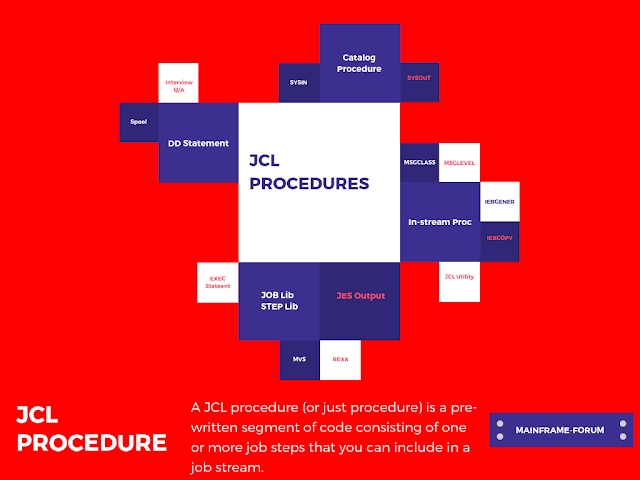
A JCL procedure (or just procedure in JCL) is a pre-written segment of code. JCL procedure consists of one or more job steps that you can include in a job stream (i.e. JCL). JCL procedures is divided into the following type:
Catalog Procedure in JCL.
Instream Procedure in JCL.
Now, let's discuss the advantage of procedure mainframe JCL's.
Advantage of procedure in JCLs.
The major advantage of procedure in JCL's is code reusability and code maintainability. By using procedures, the amount of JCL coding you have to do is reduced, resulting in fewer coding errors and greater productivity. Although you can code a JCL procedure directly in a single job stream, you’re more likely to invoke cataloged procedures that are available throughout an installation.
The syntax for invoking a JCL procedure
EXEC [PROC=]procedure-name
Note: The procedure name Identifies the procedure to be called and executed. For cataloged procedures, it’s the member name of the procedure. For instream procedures, it’s the name on the PROC statement that begins the procedure.
For example: In the middle of the below code, you can see the JCL statements that make up a cataloged procedure named XMP3000. This procedure consists of two job steps that execute the programs XMP3000 and allocate seven different data sets.
//RC01TN JOB (99992),'MAINFRAME',NOTIFY=MMTX01
//STEP01 EXEC XMP3000
//
Let's discuss the different JCL procedure categories i.e. CATALOG PROCEDURE and INSTREAM PROCEDURE.
What is CATALOG Procedure?
A cataloged procedure in JCL is a series of JCL statements that are stored in a partitioned data set and may be invoked by any job on the system (i.e. z/OS system). Whenever you invoke a cataloged procedure, the system looks for it in the system procedure library, SYS1.PROCLIB, unless you specify the library.
Although the PROC statement can be coded as the first statement in a cataloged procedure, it’s not required.
Example: CATALOGED PROCEDURE in JCL.
The cataloged JCL procedure named EMP3000 is invoked
A mainframe job (i.e. JCL) that invokes a cataloged procedure in JCL.
//RC01TN JOB (99992),'MAINFRAME',NOTIFY=MMTX01
//STEP01 EXEC EMP3000
//
What is INSTREAM PROCEDURE?
An instream procedure consists of a PROC statement, any number of procedure steps, and a PEND statement. Then, you place the instream procedure near the beginning of your job stream, before any EXEC statement that refers to it. In contrast to a cataloged procedure, an instream procedure is available only to the job that contains it.
A name is always required on the PROC statement for an instream procedure. You can also specify a name on the PEND statement, but it’s optional.
JCL statements falling between the PROC and PEND statements are not executed when first encountered. Instead, they’re scanned for errors and retained as a temporary procedure.
Any JCL statements after the PEND statement are recognized as normal statements and are executed.
An instream procedure should be placed near the beginning of a job stream, before any EXEC statement that refers to it. The maximum number of instream procedures you can code in any job is 15.
Important Point: Before cataloging a procedure in a procedure library, it’s usually a good idea to test the JCL code it contains, and the easiest way to do that is with an instream procedure.
Youtube: Catalog procedure in JCL and Instream procedure in JCL.
The JCL Procedure tutorial is associated with a youtube video for good understanding. Please do watch this video and consider subscribing to our channel for more such tutorial video!
SYMBOLIC PARAMETER in INSTREAM DATA.
To code a symbolic parameter in a procedure, you use a name that starts with an ampersand (&). The name can be any meaningful name you want as long as it isn’t a keyword parameter on an EXEC statement. For example, &TIME or ®ION would not be valid names because both are keyword parameters on an EXEC statement. But &SPACE and &CLASS are acceptable names.
You can use the same symbolic parameter in a procedure as many times as you like. For example, you can use a symbolic parameter called &CLASS as the value for the SYSOUT parameter in all of the SYSOUT DD statements in a procedure. That way, you can be sure that all SYSOUT data sets are processed using the same output class. If you need to assign different classes to the SYSOUT data sets, however, you have to use more than one symbolic parameter.
The syntax for assigning values to symbolic parameters in a procedure
Rules for coding symbolic parameters in JCL statements
You can use the same symbolic parameter in a procedure as many times as you wish.
Symbolic parameters can be mixed with text to form a final parameter value.
If you want text to appear immediately after a symbolic parameter, you must code a period (.) as a delimiter between the symbolic parameter name and the text that follows it.
If you want a period to appear immediately after a symbolic parameter, you have to code two periods in a row. The first one acts as a delimiter marking the end of the symbolic parameter and the second one becomes part of the JCL statement.
To nullify the value of a symbolic parameter, you code the symbolic parameter’s name followed by an equals sign without a value.
SET Parameter in JCL with example.
The SET statement is another way to assign values to symbolic parameters. In contrast to a PROC statement that assigns default values or a procedure-invoking EXEC statement that provides runtime values, the SET statement lets you set the values of symbolic parameters at any point or time within your JCL. Be aware, however, that SET values are overridden by any values that are assigned in subsequent PROC or EXEC statements in the job.
The syntax for the SET statement
//[name] SET symbolic-parameter=value[,symbolic-parameter=value]…
Note - The name of a symbolic parameter you want to assign a value to.
The JCL Symbolic Parameter tutorial is associated with a youtube video for good understanding. Please do watch this video and consider subscribing to our channel for more such tutorial video!
Summary.
As you code JCL, you’ll discover that there are many job steps…and series of job steps…that are used over and over in an installation, often by different programmers. That’s why OS/390 provides for procedures that can be stored in libraries and made available to any programmer on the system. With this facility, you can usually code just a few JCL statements to execute procedures that contain dozens or even hundreds of JCL statements. In fact, IBM supplies complex procedures that let you interface easily with software products like compilers, CICS, and DB2, and you’ll use them all the time. In addition, in most shops, you’ll create and use procedures that are specific to your installation.
►Subscribe to Topictrick & Don't forget to press THE BELL ICON to never miss any updates. Also, Please visit mention the link below to stay connected with Topictrick and the Mainframe forum on -