Showing posts with label Job Control Language.. Show all posts

Saturday, 10 August 2013

Instream Procedure.


An instream procedure consists of a PROC statement, followed by the JCL for the procedure, followed by a PEND statement.

Before cataloging a procedure in a procedure library, it’s a good idea to test it. You can do that by inserting the procedure into a job as an instream procedure.

A name is always required on the PROC statement for an instream procedure. You can also specify a name on the PEND statement, but it’s optional.

JCL statements falling between the PROC and PEND statements are not executed when first encountered. Instead, they’re scanned for errors and retained as a temporary procedure. Any JCL statements after the PEND statement are recognized as normal statements and are executed.
An instream procedure should be placed near the beginning of a job stream, before any EXEC statement that refers to it.

An instream procedure should be placed near the beginning of a job stream, before any EXEC statement that refers to it.

GDG

SYS1.PROCLIB is normally used to store system oriented cataloged procedures, like those supplied by IBM.

It can also be used to store other types of cataloged procedures (like those for production jobs, job steps, or jobs that are in development), but other private procedure libraries are often created for these.

The JCLLIB statement lets you identify libraries as private procedure libraries that the system should search to find a specified cataloged procedure.

The job will search the JCLLIB libraries in the order in which they’re coded. If the procedure is not found in any of the named libraries, SYS1.PROCLIB is searched.
The JCLLIB statement must appear after the JOB statement but before any EXEC statements in the job.

The system and private libraries you specify in the JCLLIB statement can contain both procedures and INCLUDE groups.

Syntax JCLLIB statement

//[name] JCLLIB ORDER=(library[,library]…)

ORDER      

 Specifies the names of the libraries to be searched for cataloged procedures. You can specify private libraries, system libraries, and installation-defined libraries. The system will search the libraries in the order specified.

A job that invokes a cataloged procedure in a test library

//MM01RN JOB (36512),'R MENENDEZ',NOTIFY=MM01
// JCLLIB ORDER=(MMA2.TEST.PROCLIB,MMA2.PROD.PROCLIB)
//STEP1 EXEC INV3000
//


The search sequence used to find procedure INV3000

MMA2.TEST.PROCLIB ---> MMA2.PROD.PROCLIB --> SYS1.PROCLIB

INCLUDE

The INCLUDE statement is similar to the EXEC statement for a procedure in that it lets you copy text directly into your job stream. When the job is submitted, the INCLUDE group (the JCL statements in the library member that’s specified) replaces the INCLUDE statement, and the system processes the embedded text as part of the job stream.

You can use the INCLUDE statement to copy portions of a step, such as a single DD statement or a group of commonly used DD statements.

INCLUDE statements can be nested up to 15 levels deep.

The JCL submitted for processing

//RC01RN  JOB (36512),'R XXXXXXX',NOTIFY=RC01
// JCLLIB ORDER=MMA2.PROCLIB
//INV3010 EXEC PGM=INV3010
//SYSOUT  DD SYSOUT=*
// INCLUDE INVMAST
//INVSEL  DD DSNAME=&&INVSEL,DISP=(NEW,PASS),
//           UNIT=SYSDA,SPACE=(CYL,(20,10))
//SELCTL  DD DUMMY
//INV3020 EXEC PGM=INV3020
//SYSOUT  DD SYSOUT=*
//INVMAST DD DSNAME=&&INVSEL,DISP=(OLD,DELETE)
//INVSLST DD SYSOUT=*
//

JCL IEBPTPCH Utility.

You can use IEBPTPCH to print or punch all, or selected portions, of a sequential or partitioned data set or PDSE. Data can also be "printed" or "punched" to disk or tape.

Sunday, 4 August 2013

Mainframe Utilities - A Guide to Mainframe System Management.

JCL (Job Control Language) is a scripting language that is used to manage and automate mainframe computer systems. It is an essential tool for system administrators and operators to manage their systems and processes efficiently. In this guide, we will provide a comprehensive overview of JCL utilities and their applications.

What are JCL Utilities?

JCL Utilities are a set of programs that are used to perform specific tasks on mainframe systems. These utilities can automate routine tasks, simplify system management, and provide a way to process large amounts of data quickly and efficiently. They are used to manage and control various aspects of the mainframe system, such as data processing, job scheduling, data backup, and recovery.

Key Features of JCL Utilities.

  • Easy to use: JCL utilities are designed to be simple and user-friendly, making them accessible to a wide range of users, including those with limited technical skills.
  • Flexible: JCL utilities can be tailored to meet the specific needs of each system and organization, allowing administrators to customize their use and applications.
  • Scalable: JCL utilities are designed to handle large amounts of data, making them suitable for organizations of any size.
  • Efficient: JCL utilities automate routine tasks and processes, saving time and reducing the risk of human error.
  • Reliable: JCL utilities are robust and reliable, ensuring that systems and data are protected against potential risks and problems.

Applications of JCL Utilities.

Mainframe JCL utilities can be used for a wide range of tasks and applications, including:
  • Data processing: JCL utilities can be used to process large amounts of data quickly and efficiently, making it easy to generate reports, update databases, and manage data backups.
  • Job scheduling: JCL utilities can be used to schedule and manage jobs, ensuring that tasks are performed in an organized and efficient manner.
  • Data backup and recovery: JCL utilities can be used to automate data backup and recovery processes, reducing the risk of data loss and ensuring that systems are protected against potential problems.
  • Performance optimization: JCL utilities can be used to optimize system performance, reducing downtime and improving the overall efficiency of the system.


Popular Mainframe Utilities.

There are several Mainframe utilities, each with its own unique set of features and capabilities. Here are some of the most commonly used JCL utilities:

  • IEBGENER is a utility that allows you to copy and modify sequential data sets. With IEBGENER, you can easily duplicate data sets, make modifications to existing data sets, or create new data sets from scratch. This utility is particularly useful for creating backups, as well as for copying and modifying data sets during testing and development.
  • IEBCOPY is a utility that enables you to copy, compare, and merge partitioned data sets (PDSs) and library members. This utility can also be used to convert data sets from one format to another, making it a versatile and powerful tool for mainframe data management.
  • IEBEDIT is a utility that allows you to edit sequential data sets, either interactively or in batch mode. With IEBEDIT, you can make changes to data sets, add or delete data, or format data in a specific way. This utility is particularly useful for making quick, ad hoc changes to data sets, or for formatting data for reporting purposes.
  • SORT/Merge is a utility that enables you to sort and merge data from multiple data sets into a single, sorted data set. This utility is particularly useful for creating reports, as well as for data analysis and data mining.
  • IDCAMS is a utility that provides a wide range of capabilities for managing and manipulating data sets, including creating, deleting, and renaming data sets, as well as managing access control to data sets. This utility is an essential tool for mainframe data management and is used by system administrators and operators on a daily basis.

JCL Utilities and Performance Optimization

By leveraging the power of Mainframe utilities, organizations can significantly improve the performance and efficiency of their mainframe systems. For example, by using the SORT/Merge utility to sort and analyze data, organizations can quickly identify performance bottlenecks and take steps to address them. 

Additionally, by automating routine tasks with JCL utilities, organizations can reduce the risk of human error, freeing up system administrators and operators to focus on more complex tasks.

Ultimately, JCL utilities are an essential tool for mainframe system performance optimization. By providing a wide range of powerful and flexible solutions, JCL utilities make it possible to automate routine tasks, simplify system management, and improve the overall efficiency of mainframe systems.

Conclusion.

JCL utilities are a vital tool for system administrators and operators, providing a simple and efficient way to manage and automate mainframe systems. Whether you are looking to process data, schedule jobs, or perform data backup and recovery, JCL utilities offer a range of powerful and flexible solutions.

With this guide, you should have a good understanding of what JCL utilities are, their key features and applications, and the most popular JCL utilities available.

Created with Artisteer

Sunday, 28 July 2013

JCL SORT: DFSORT Syntax, Examples and Common SYSIN Cards


JCL SORT DFSORT SYSIN cards for ascending descending and multi-field sorts
JCL SORT DFSORT SYSIN cards for ascending, descending and multi-field sorts.


Sequential files are still commonly used in mainframe shops to store transaction records. Then, before the records in these files can be processed, they often need to be sorted or merged into an appropriate sequence. For instance, sales transactions may need to be sorted into salesperson, customer, or item number sequence before they can be used to prepare reports or update master files. 

To do this sorting or merging, you use the sort/merge utility that comes with OS/390. As you will see, you normally use JCL to run this utility as a standalone program. However, you can also use this utility to do an internal sort or internal merge within an application program. 

The JCL requirements for sorting


Sort the records in a file, the sort/merge utility (or program) reads the records from one or more input files, sorts them based on the data in one or more control fields (or sort keys), and writes the sorted records to an output file. 

If you want to sort two or more files at the same time, you can concatenate them like this: 

//SORTIN DD DSNAME=RC01.INVOICE.TRANS.APRIL,DISP=SHR 
//       DD DSNAME=RC01.INVOICE.TRANS.MAY,DISP=SHR
//       DD DSNAME=RC01.INVOICE.TRANS.JUNE,DISP=SHR

This assumes of course that the control field is in the same location in all of the files.

Although the JCL for this job step provides for only one work file, you can provide for more than one. Either way, the space allocation for the work files should be about twice the combined sizes of the input files. That extra space lets the sort/merge program work more efficiently while it does the sorting.


JCL Sort Utility
JCL Sort.

The DD statements required by a sort

DD name Use
SORTLIB A partitioned data set that contains the modules required by the sort/merge utility. Normally, SYS1.SORTLIB.
SYSOUT The messages produced by the sort/merge utility. Normally, a SYSOUT data set.
SORTIN The input file or files to be sorted. If more than one file is to be sorted, you can concatenate them.
SORTOUT The sorted output file. It can be a new non-VSAM file with DISP=(NEW,KEEP) or DISP=(NEW,CATLG), an extension of an existing non-VSAM file with DISP=MOD, or an existing VSAM file.
SORTWKnn The work files required by the sort, where nn is a consecutive number starting with 01. One or two files are usually adequate, and the total DASD space allocated to the work files should be about twice the input file size. You can specify up to 255 work files.
SYSIN The sort control statements. Normally, an instream data set.

Common JCL SORT SYSIN Cards

The SYSIN DD statement tells DFSORT which fields to sort and which sequence to use. In a fixed-length file, the first number is the starting byte, the second number is the field length, the format tells DFSORT how to read the data, and A or D sets ascending or descending order.

Ascending character sort

//SYSIN   DD *
  SORT FIELDS=(9,5,CH,A)
/*

This sorts on a 5-byte character field that starts in position 9. Use this when a customer code, item code, state code, or short name field must run from low value to high value.

Descending character sort

//SYSIN   DD *
  SORT FIELDS=(9,5,CH,D)
/*

The same field can be sorted in reverse sequence by changing A to D. This is useful when the newest code, highest alphabetic range, or reverse report order must appear first.

Multi-field sort

//SYSIN   DD *
  SORT FIELDS=(1,10,CH,A,20,8,ZD,D)
/*

This sorts first by a 10-byte character key in ascending order, then by an 8-byte zoned decimal field in descending order. For example, a report can group records by account number and put the largest amount first inside each account.

For filtering records before or after a sort, see JCL SORT INCLUDE and OMIT examples. If you are still setting up the full job, start with the JCL tutorial for JOB, EXEC and DD statements.

Example: Sample SORT JCL.


//RCORT01 JOB  (...JOB CARD..) 
//SORT    EXEC PGM=SORT
//SORTLIB DD DSNAME=SYS1.SORTLIB,DISP=SHR
//SYSOUT  DD SYSOUT=*
//SORTIN  DD DSNAME=RCKT10.INVOICE.TRANS,DISP=SHR
//SORTOUT DD DSNAME=RCKT10.INVOICE.TRANS.SORTED,DISP=(NEW,CATLG),
//                  UNIT=SYSDA,VOL=SER=MPS8BV,
//                  SPACE=(CYL,(10,5))
//SORTWK01 DD UNIT=SYSDA,SPACE=(CYL,(20,5))
//SYSIN    DD * 

  SORT FIELDS=(9,5,CH,A)
/*


JCL SORT FAQ

What does SYSIN do in a JCL SORT step?

SYSIN supplies the DFSORT control statements. In the sample job, the SORT statement in SYSIN tells DFSORT which field starts at byte 9, how many bytes to read, which data format to use, and whether the output should be ascending or descending.

How do I read SORT FIELDS=(9,5,CH,A)?

Read it as: start at position 9, sort 5 bytes, treat the field as character data, and sort in ascending order. If the key field moves in the input layout, change the starting position and length to match the new copybook or record layout.

What is the difference between A and D in DFSORT?

A means ascending sequence and D means descending sequence. For character keys, ascending puts lower character values first. For numeric keys such as zoned decimal fields, descending puts the largest numeric values first.

Can JCL SORT use more than one key field?

Yes. Add each field to the SORT FIELDS list in priority order. DFSORT sorts by the first key first, then uses the second key when two records have the same value in the first key.

When should I use INCLUDE or OMIT with SORT?

Use INCLUDE when only matching records should go to SORTOUT. Use OMIT when matching records should be dropped. Filtering before the sort can reduce the number of records DFSORT has to order.


JCL Restart Parameter.| RESTART in JCL | JCL RESTART Example.

JCL Restart COND
JCL Restart Parameter.

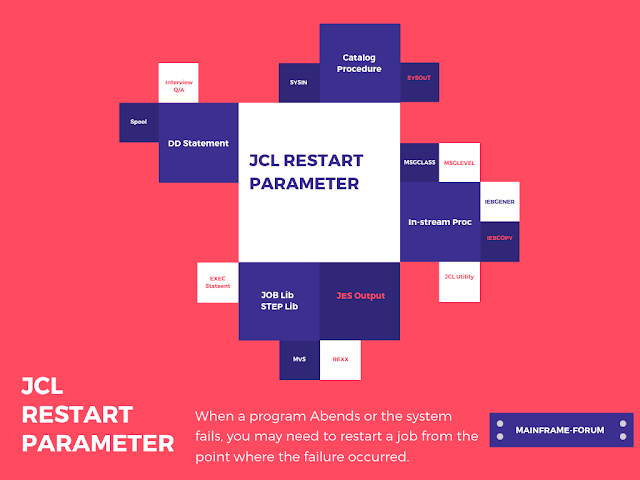
Today's tutorial. I will discuss the JCL RESTART Parameter. When a program Abends or the system fails, you may need to restart a job from the point where the failure occurred. OS/390 provides various facilities for doing that. So, let's start with the tutorial.

How to restart a job?

Jobs may terminate before they complete due to a program or system error. In either case, it’s possible to restart a job at a point other than at the beginning. To be specific, you can restart a job from a designated step (a step restart), or you can restart a step from a checkpoint within a program (a checkpoint restart). OS/390 provides two parameters for restarting a job. 

The RESTART parameter can be coded on the JOB statement to handle job failures, while the RD parameter can be coded on the JOB or EXEC statement to handle job or system failures. In addition, JES2 and JES3 both provide statements that restart jobs automatically in case of a system failure.

How to code checkpoints in your jobs?

Whenever you set-up the checkpoints for individual jobs-steps, the status of the executing program is stored periodically in a data-set assigned for that purpose. In case, the job terminates without successfully completing the job-step, it must be restarted from the last recorded checkpoint rather than having to start at the beginning of the step again.

  • Checkpoints can be set up on individual job steps so that periodic snapshots are taken of the executing program’s status and are stored in a designated data set. If the job terminates for whatever reason, it can be restarted from the last recorded checkpoint rather than from the beginning of the step.
  • Not all programming languages allow checkpoint recording. For those that do, refer to their language reference manuals for specific instructions on how to set up a checkpoint.
  • Use the CHKPT parameter on the DD statement to record a checkpoint whenever a multi-volume sequential data set reaches the end of a volume. Checkpoints are written for each volume except the last.
  • If you use the CHKPT parameter on a DD statement, be sure to include an SYSCKEOV DD statement that defines the data set where the checkpoints are stored. The SYSCKEOV data set must be a sequential or partitioned data set defined with DISP=MOD so that each new checkpoint is written beyond the previous one.

COBOL
Use the RERUN clause in the I-O-CONTROL paragraph of the Input-Output Section to generate checkpoints within a COBOL program. The ddname for the data-set that stores the checkpoints are specified in the RERUN clause.
PL/I
Use the CALL PLICKPT feature to generate checkpoints within a PL/I program. The ddname for the checkpoint the data set is SYSCHK.


The syntax for the CHKPT parameter of the DD statement CHKPT=EOV EOV - Requests a checkpoint at the end of the volume. 

A job step with end-of-volume checkpoints
//STEP1    EXEC PGM=EMPUPD
//INVOUT   DD   DSN=RC01.PAYINV.OUT,DISP=(NEW,KEEP,DEL),
//              UNIT=TAPE,VOL=SER=(TAPE01,TAPE02),CHKPT=EOV
//SYSCKEOV DD   DSN=CHECK.SAVE,DISP=MOD

RESTART parameter

The JOB RESTART parameter allows you to restart the job from a specified job step, procedure step, or checkpoint within a job step.

The syntax for the RESTART parameter of the JOB statement.

RESTART= ({* } [,checkid] )
         {stepname }
         {stepname.procstepname}

The two ways to use the RESTART parameter

A deferred step restart

//RCR01F JOB (99912),'RC TCTRNDEZ',RESTART=STEP3 
//RCR01G JOB (99912),'RC TRTELEOR',RESTART=STEP3.INV3020

A deferred checkpoint restart

//RCR01H JOB (99912),'A XYX', RESTART=(STEP2,CKPT4)
//SYSCHK   DD DSNAME=RC01.INFILE.CHECK,DISP=(OLD)

RD parameter for automatic restarts.

If a job abends due to a program or system failure, the entire job or the individual job steps within it can be automatically restarted if you code the RD parameter on the JOB or EXEC statement. The RD 
parameter can also be used to control checkpoint restarts. 

To have a job automatically restart after a system failure, code RD=R or RD=RNC on either the JOB or EXEC statement. If coded in the JOB statement, all of the job steps in the job are restarted. If coded on the EXEC statement, only the individual job step is restarted. An RD parameter in the JOB statement overrides any RD parameters specified in the EXEC statements. 

The system can perform an automatic restart on a job only if the job has a job journal. A job journal is a sequential data set that contains job-related control blocks needed for the restart. It’s an internal system file that’s not part of your JCL. 

Specifying RD=NR or RD=NC will prevent an automatic restart from occurring, so you’ll probably never code it that way. 

The syntax for the RD parameter of the JOB and EXEC statements

RD= {R} {RNC} {NR} {NC}

R
Restart, checkpoints allowed. This option allows the system to automatically restart execution of a job or job step from the beginning or from the last checkpoint.
RNC
Restart, no checkpoints. This option allows the system to perform an automatic step restart when the job or job step fails. Automatic and deferred checkpoint restarts aren’t allowed.
NR
No automatic restart, checkpoints allowed. This parameter suppresses automatic restarts but permits deferred checkpoint restarts.
NC
No automatic restart, no checkpoints. This option indicates that the system can’t perform an automatic step restart if the job or job step fails and that checkpoint restarts aren’t allowed.

The system will perform an automatic restart on a job or job step when:

- RD=R or RD=RNC is present on a JOB or EXEC statement
- The step to be restarted as a restartable abend code
- The operator authorizes the restart


A JOB statement that uses the RD parameter

//RC01RA JOB (99912),'RCTXIE',RD=R
An EXEC statement that uses the RD parameter

//STEP2 EXEC PGM=EMPOUPD,RD=RNC


JCL Tutorial: COND Parameter in JCL | COND Parameter Examples | [JCL COND Examples].

COND Parameter Example, JCL Tutorial, COND Parameters in JCL

COND Parameter in JCL

Welcome back to today's JCL Tutorial on "JCL COND Parameters" or "COND parameter in JCL". In this session, you'll learn the basics of JCL cond parameters and how you can use the COND parameter in the mainframe jobs for conditional processing. Let's get started with the introduction to JCL.

Agenda - COND Parameters in JCL.
  • What does JCL Stand for?
  • JCL COND Parameters.
  • JOB Return Code and STEP Return Code.
  • COND parameter syntax in JCL.
  • JCL COND Examples.
  • JCL IF-ELSE Condtions.
  • Youtube: How to Process Mainframe Job Conditionally?
  • Conclusion.


What is JCL stands for?


The term JCL stands for "JOB Control Language". It is the command language of the z/OS operating system. JCL actually collates and provides information that identifies the programs to be executed and the data to be processed. JCL tells the operating system what to do. In general, a JCL has three different types of JOB Control Statements. Let's look at the JCL example and it is used to specify datasets and programs.


JCL Tutorial, JCL Example, COND Parameter
JCL Tutorial:- JCL Example


JCL COND Parameter (COND Parameter).


COND Parameters in JCL or simply COND Parameters are used in JCL's for conditional processing. In fact, the COND parameter provides more control over the conditional execution of each job step. You’ll often find that job steps are dependent on one another. If one step ends abnormally, then you may not want to continue processing any subsequent steps.

That’s why z/OS provides facilities that allow you to execute programs conditionally by using COND Parameters in JCL. In other words, you can specify whether to execute a job step based on the results of previous steps in the job. You can use the COND parameter in both JOB Statements and EXEC statements.

Let's try to understand what is the difference between a JOB Return code and a Step Return Code.

What are the JOB Return Code and STEP return codes?


In the mainframe, JCL's are used to specify the program and datasets that need to be executed to accomplish a specific task, for example, Tax calculation. In JCL, you have different steps and each step passed a code to the z/OS operating system, indicating the status of execution. This code is known as the RETURN Code. 

The RETURN CODE actually indicates if the job has been completed successfully or there is some exception that has occurred. You can easily go through the RETURN CODE and take corrective action. 

Finally, the RETURN Code of the individual step is called as STEP return code, and the RETURN code entire JOB is termed as JOB RETURN CODE. 

Important Note: Step return code A step return code (or just a return code or condition code) indicates whether or not a job step ran successfully. The return code is typically 0 if a step ends normally. The return code can range from 1 to 4095 if the step does not end normally. The return code and what it represents is determined by the program that runs during the process. 


Return Code Meaning
0
The program ran to successful completion.
4
The program encountered a minor error but was able to recover.
8
The program encountered a problem that inhibited successfully execution.
12
The program encountered a problem that inhibited successfully execution; normally, this indicates a more serious error than return code 8.
16
The program encountered a serious error and was not able to continue.


How to use the COND Parameter in JCL?


COND Parameter on a JOB statement to specify the conditions that cause a job to stop processing. If any of the steps within the job issues a return code that satisfies the condition, the system bypasses the remaining steps and terminates the job.

On a single COND parameter, you can include up to eight conditions. Then, if any one of the conditions is true, the job terminates. This can be useful in situations where you are interested in stopping the job only if certain return codes are issued. 


COND parameter syntax in JCL.


The syntax of the JCL COND Parameter is pretty simple and easy to use. You have to specify the return code followed by the operator. Refer to the following details:

COND=((value,operator)…)

COND Parameter in JCL Example.

Examples: JCL COND parameter on a JOB statement.

The job will terminate if any job step has a return code of 8.

//MM01C JOB (36512),'R RCTXT',COND=(8,EQ)

The job will terminate with a return code of 8 or a return code of 16 or greater.

//MM01C JOB (36512),'R RCTXT',COND=((8,EQ),(16,LE))

The job will terminate with a return code of 8, 12, or 16

//MM01C JOB (36512),'R RCTXT',COND=((8,EQ),(12,EQ),(16,EQ))

Note:- This can be useful in situations where you are interested in stopping the job only if certain return codes are issued.


JCL EXEC COND Parameter.

As you know that JCL COND parameters can be used either on the JOB Statement or EXEC statement or probably on both statements. The COND parameter of an EXEC statement runs return code tests for only its phase in a job. Different tests can be run for each move using EXEC COND parameters. EXEC COND parameters are useful if the same return code has different meanings in different job steps, or if you want to perform different actions depending on which job phase produced the return code.


        COND=([(value, operator [,stepname ] ) … ]
            [ , { EVEN } { ONLY } ] )


EVEN
Tells the system to execute the job step even if a previous job step abended.
              ONLY
Tells the system to execute the job step only if a previous job step abended.


//STEP010   EXEC PGM=VIDUPD1,COND=(7,LT)
//STEPO30   EXEC PGM=VIDRPT3,COND=(8,EQ,SORT1) 


Note:- The job step is bypassed if SORT1 has a return code of 8


JCL IF-ELSE construct.


JCL COND parameters enable programmers to control the execution of JCL steps based on return codes. However, you use IF-ELSE construct to execute a piece of logic based on return code. An IF construct can appear anywhere in the job after the first EXEC statement. The THEN clause and, if used, the ELSE clause must each contain at least one EXEC statement.


JCL IF-ELSE Example.


//RTMX01 JOB (...) [JOB CARD]
//  IF RC= 8 THEN
//TRERR    EXEC PGM=ARD1345
//SYSOUT   DD SYSOUT=*
//ERRLOG   DD DSNAME=PRKT10.ERRLOG,DISP=MOD
//  ELSE
//TRSUM    EXEC PGM=PR5350
//SYSOUT   DD SYSOUT=*
//TRANFILE DD DSNAME=PRKT10.TRANFILE,DISP=SHR
//  ENDIF

Youtube: How to process Mainframe Job Conditionally.


Conclusion. 


Finally, this marks an end to today's JCL COND Parameter. In this session, you learn how to define and use JCL COND Parameter. You also learn, how to use the COND parameter on the JOB statement and EXEC statements. Don't forget to join us for the next tutorial on "CA7 Command Reference."

►Subscribe to Topictrick & Don't forget to press THE BELL ICON to never miss any updates. Also, Please visit mention the link below to stay connected with Topictrick and the Mainframe forum on - 

► Youtube
► Facebook 
► Reddit

Thank you for your support. 
Mainframe Forum™

New In-feed ads